Logging In With Codex
Use your own OpenAI / ChatGPT account on a Versors machine. Codex CLI is pre-installed — log in once per machine. Your credentials stay on the machine and are never transmitted to Versors.
If the CLI prompts you to update, just hit Skip. Logging in works fine on the installed version.
Steps
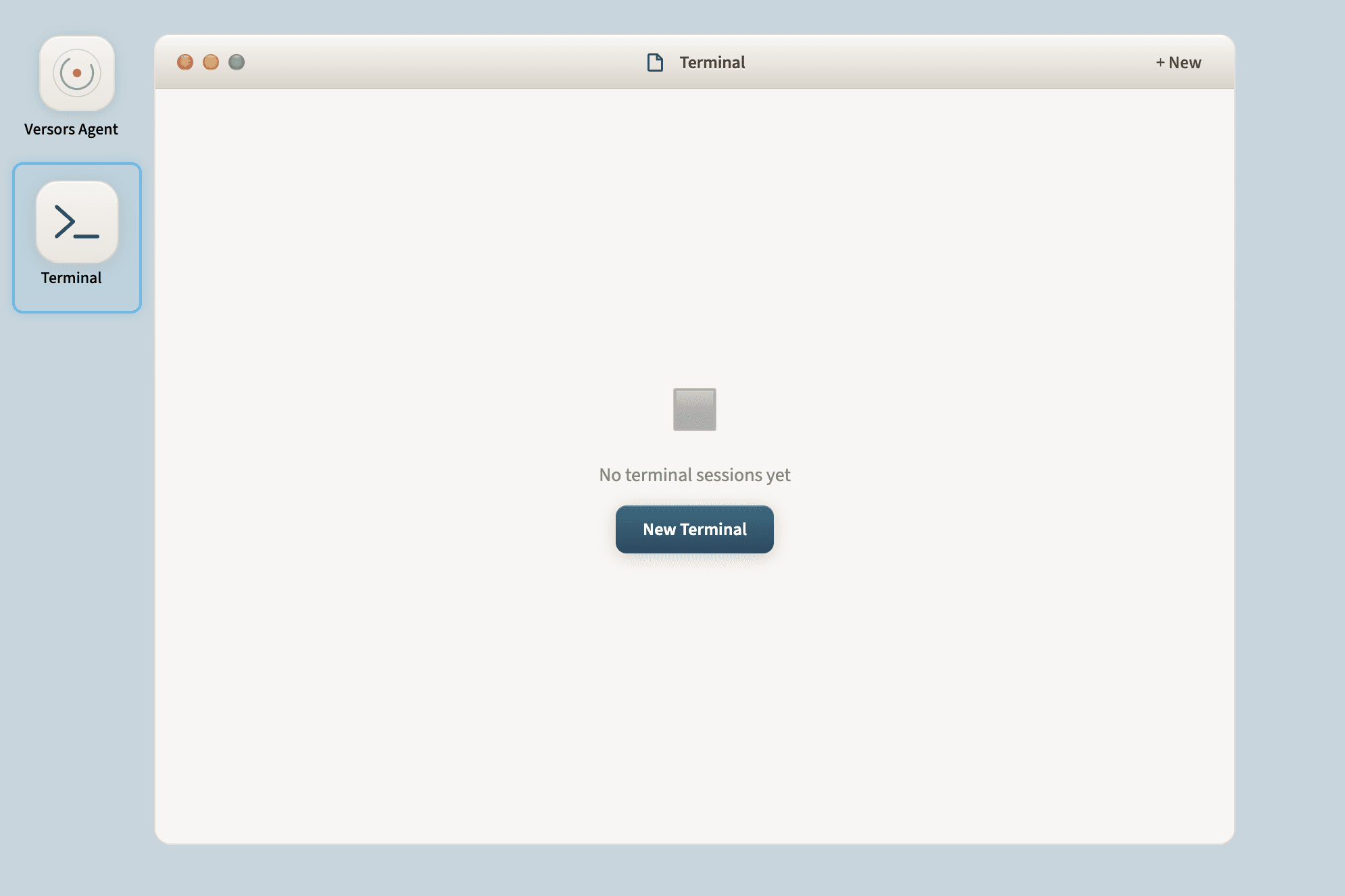
Open the terminal and click New Terminal.
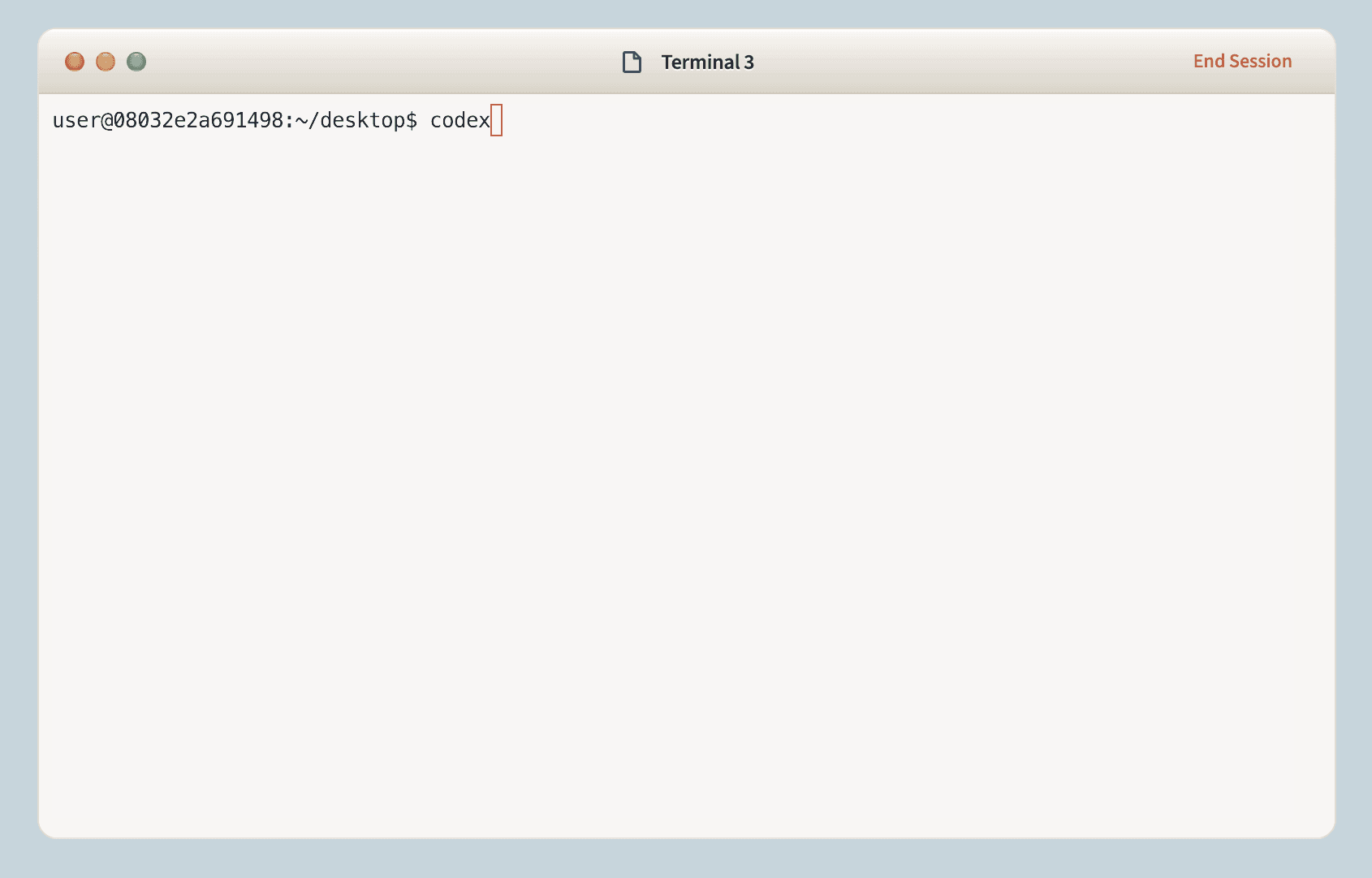
Type codex and press Enter.
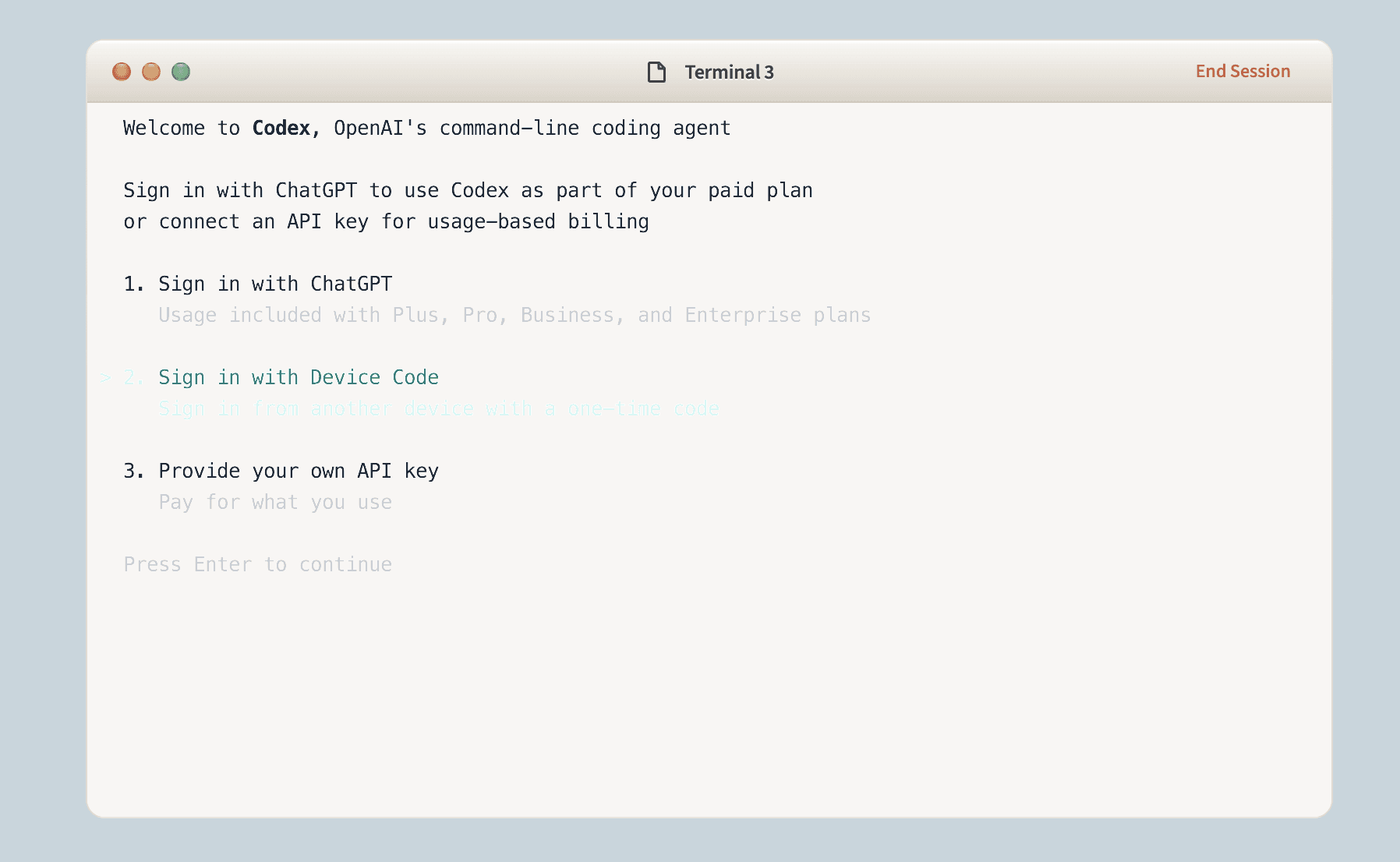
Select Sign in with device code (the middle option) and press Enter.
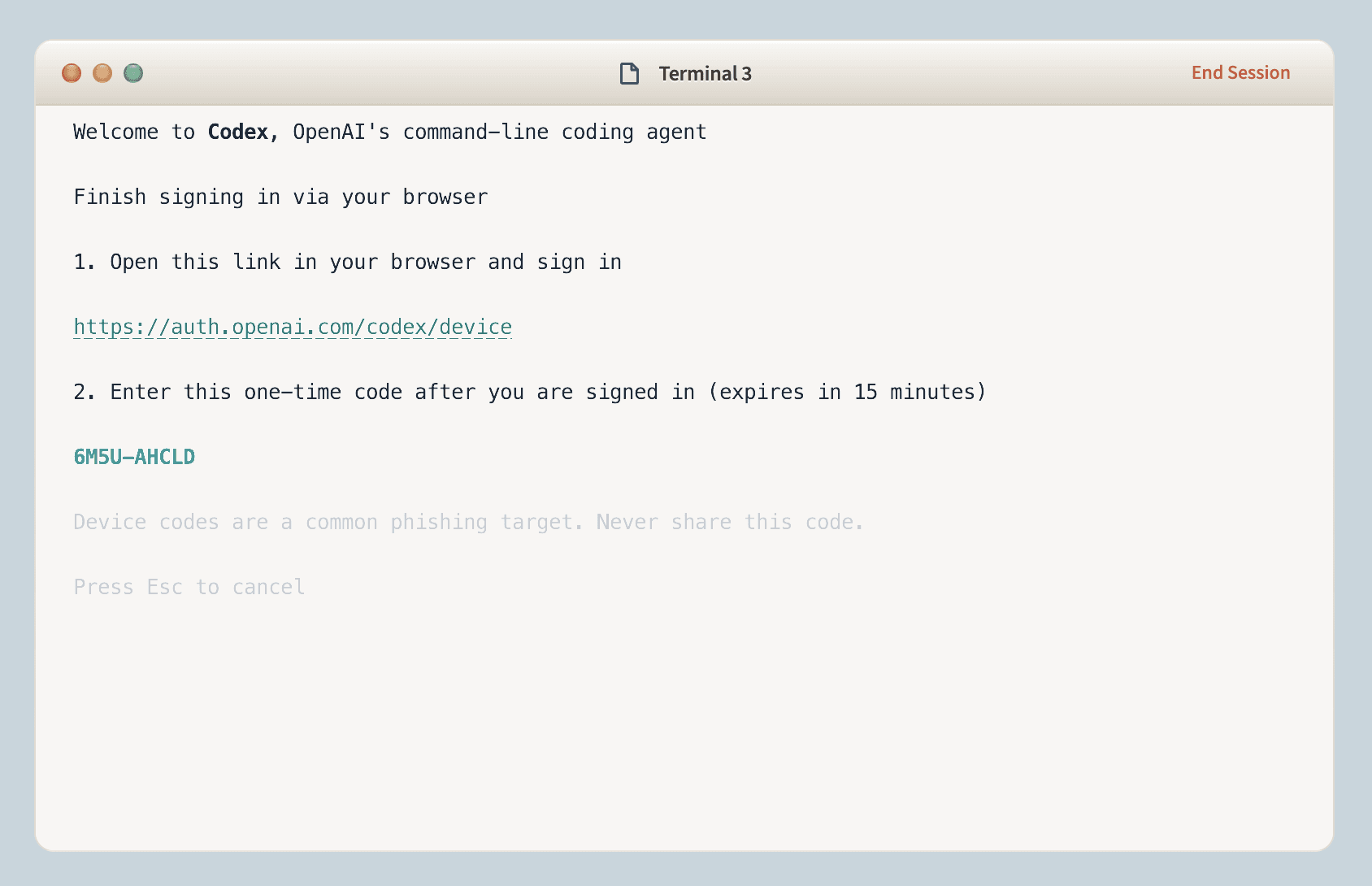
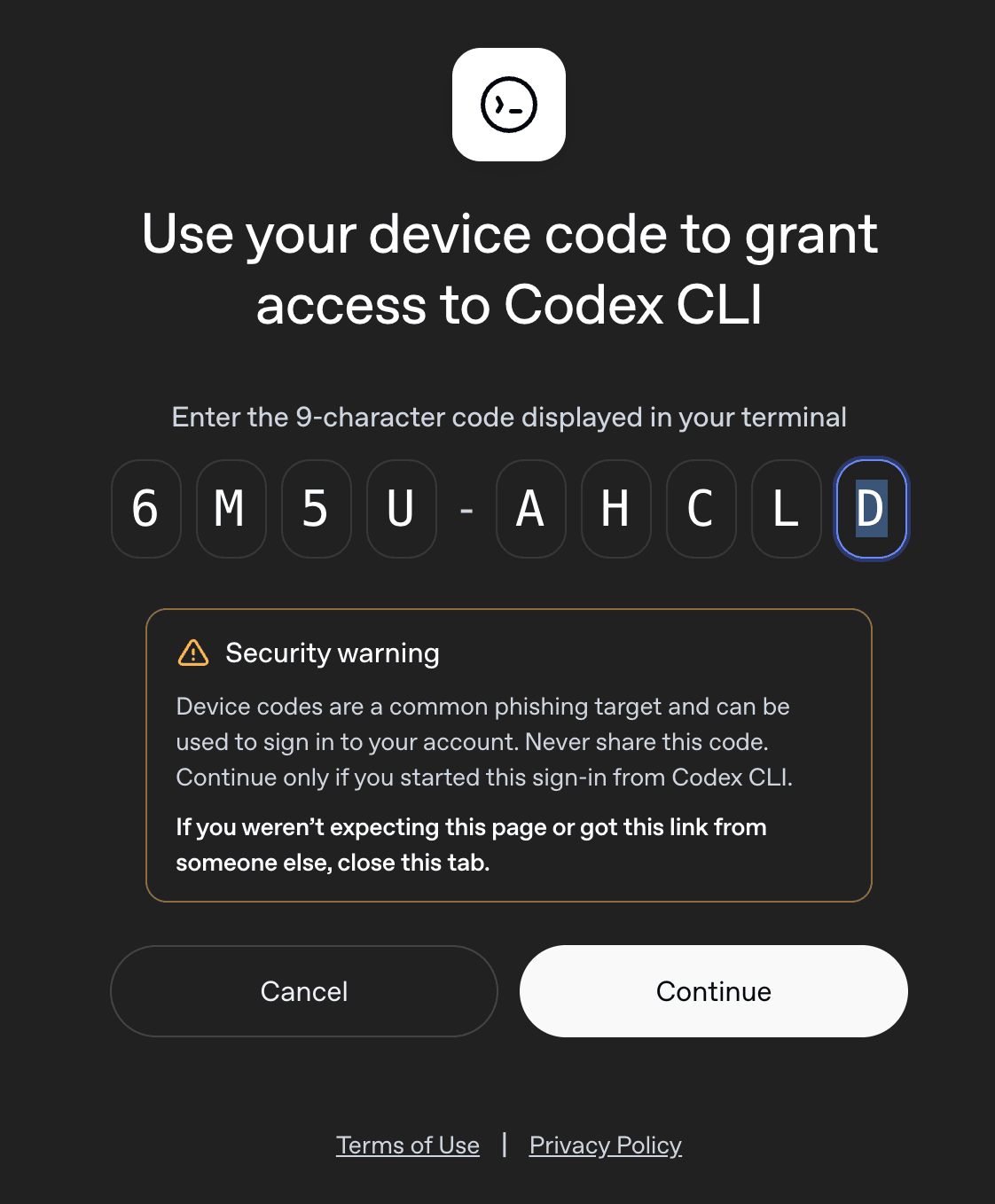
Copy the one-time code shown in the terminal and click the link.
Paste the one-time code into the field that opens in the new tab.
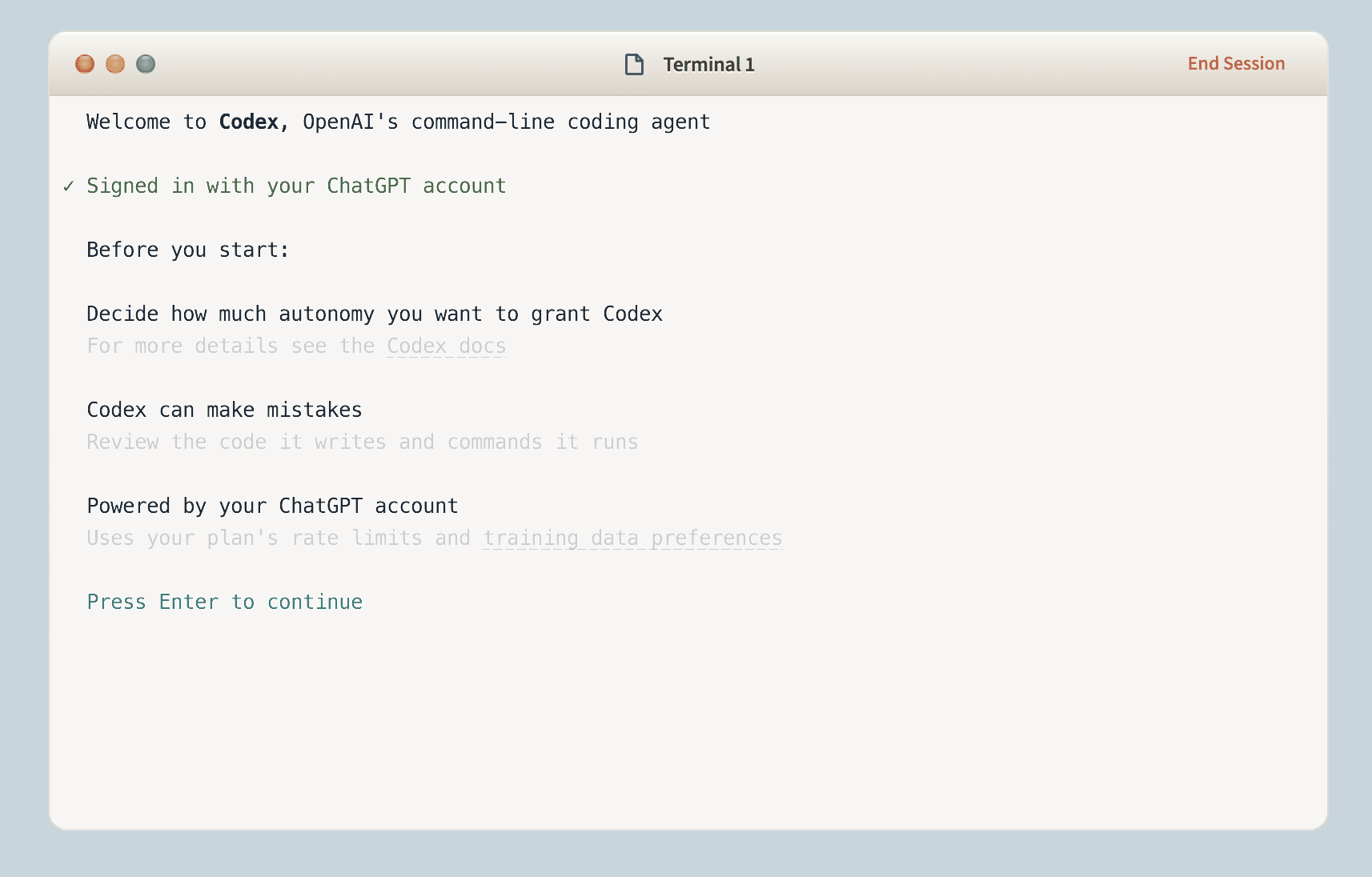
You're signed in. Press Enter to continue.
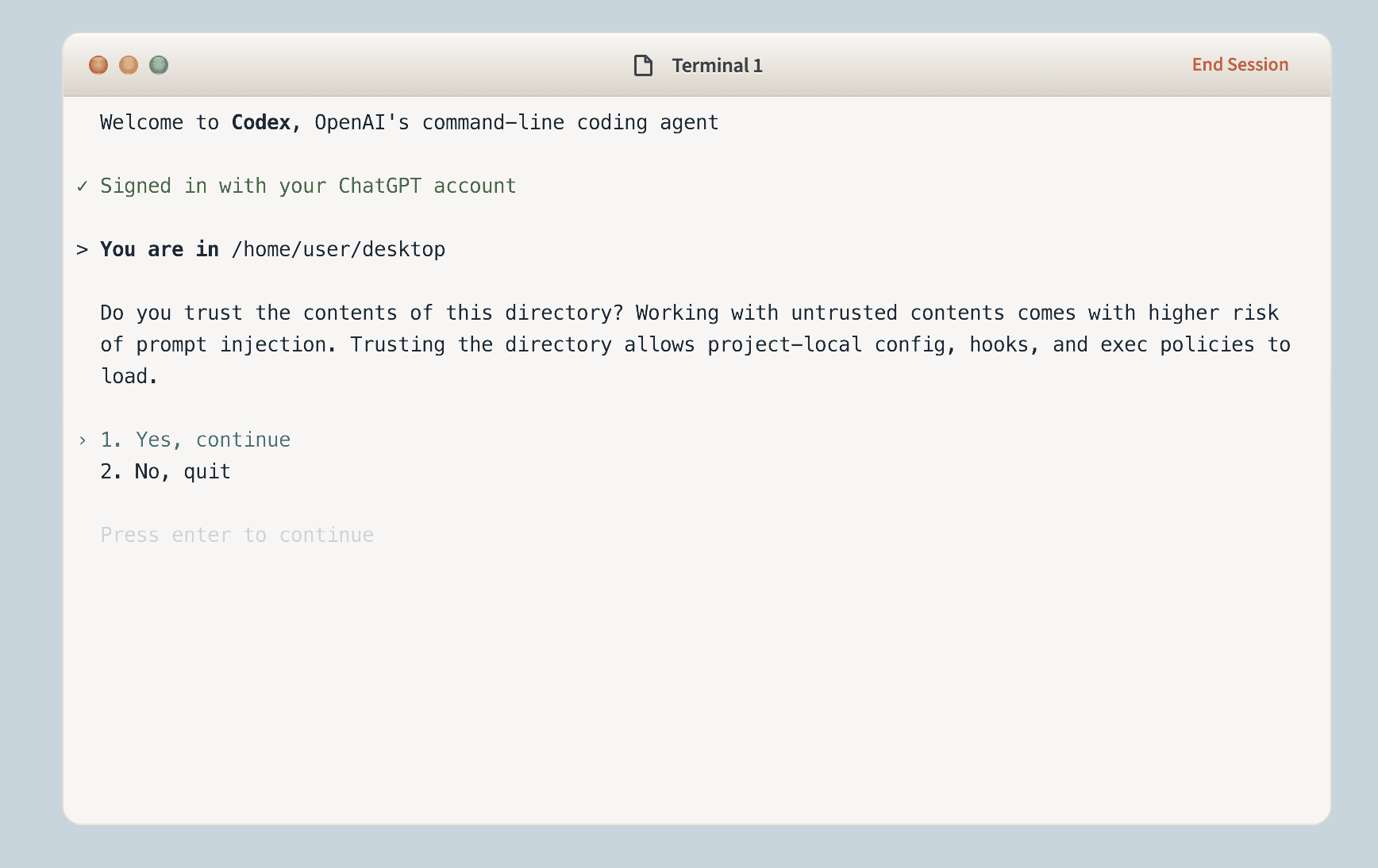
Press Enter to trust.
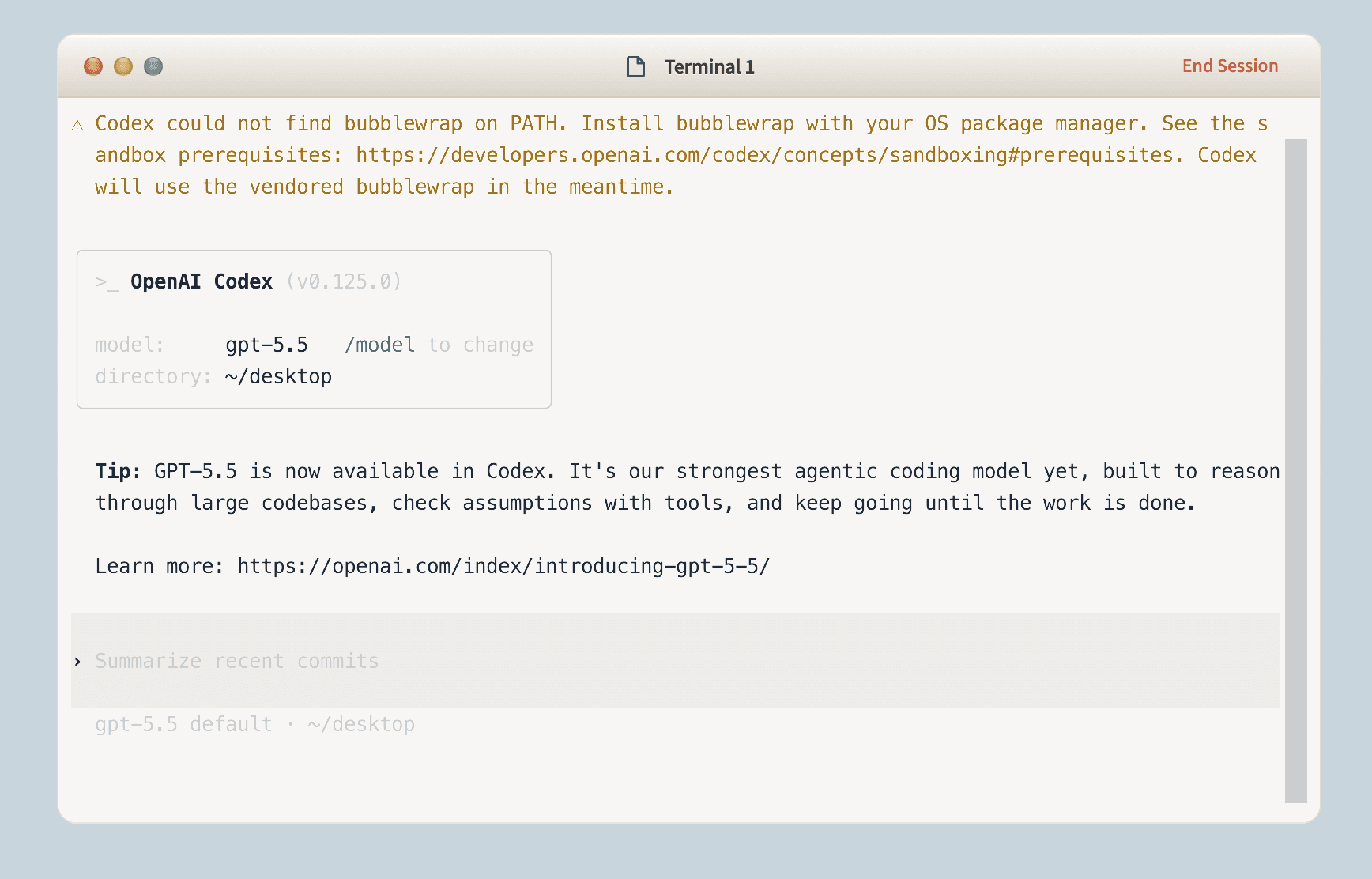
You're ready to go.
Notes
- You'll need to repeat these steps on each new machine — credentials live on the machine's filesystem only.
- Versors still bills for compute, storage, and any Versors tools your agent uses. AI usage goes through your OpenAI account.
Advanced: updating the CLI
You can skip the update prompt during login. If you do want to upgrade, the CLI is installed globally, so you'll need sudo or you'll see a permission error:
sudo npm install -g @openai/codex